

Customise Spam Filter Settings in cPanel
By default all email services will provide are configured to use our email cluster for incomng email. This cluster of servers accept all incoming email, scan it for spam and viruses then pass any clean email onto the server hosting your inbox.
The default setting on our email cluster is set to quarantine any email with a spam score of 4 or higher which should work well for most users with no intervention required. However, if you would like to apply custom settings to increase or decrease spam detection triggers, you can do so via cPanel.
Please note that lowering the scores that trigger spam detection may result in valid email being blocked or quarantined.
Step 1
Login to cPanel
Step 2
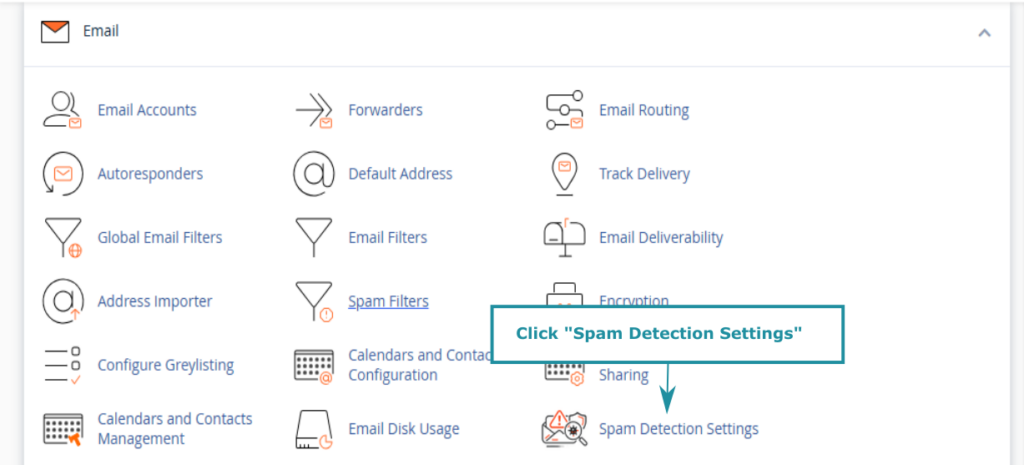
Navigate to the Email section, and click on “Spam Detection Settings”.
Step 3
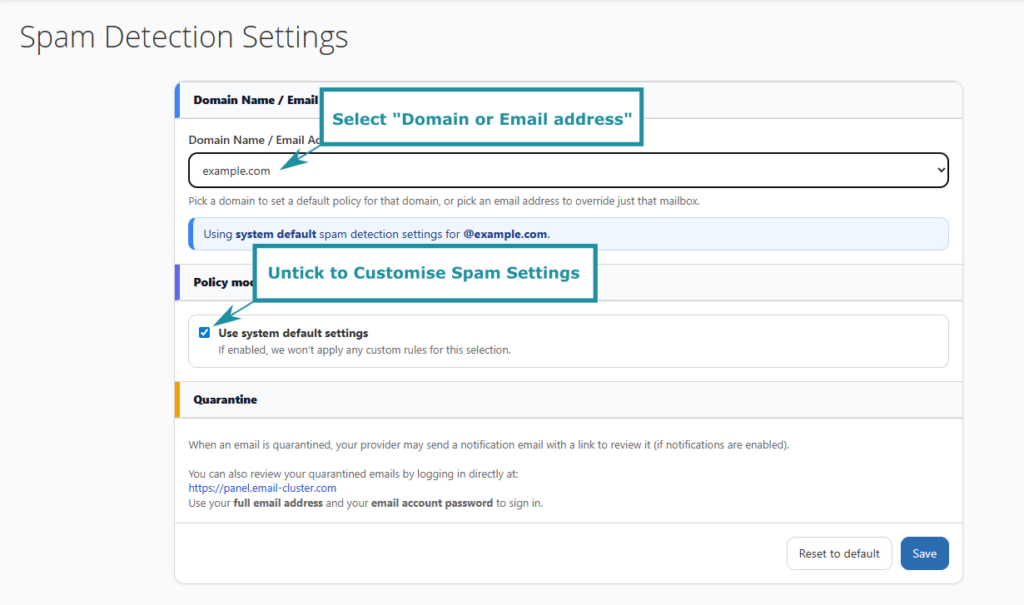
Select the domain name or email address which you want to customise the settings for.
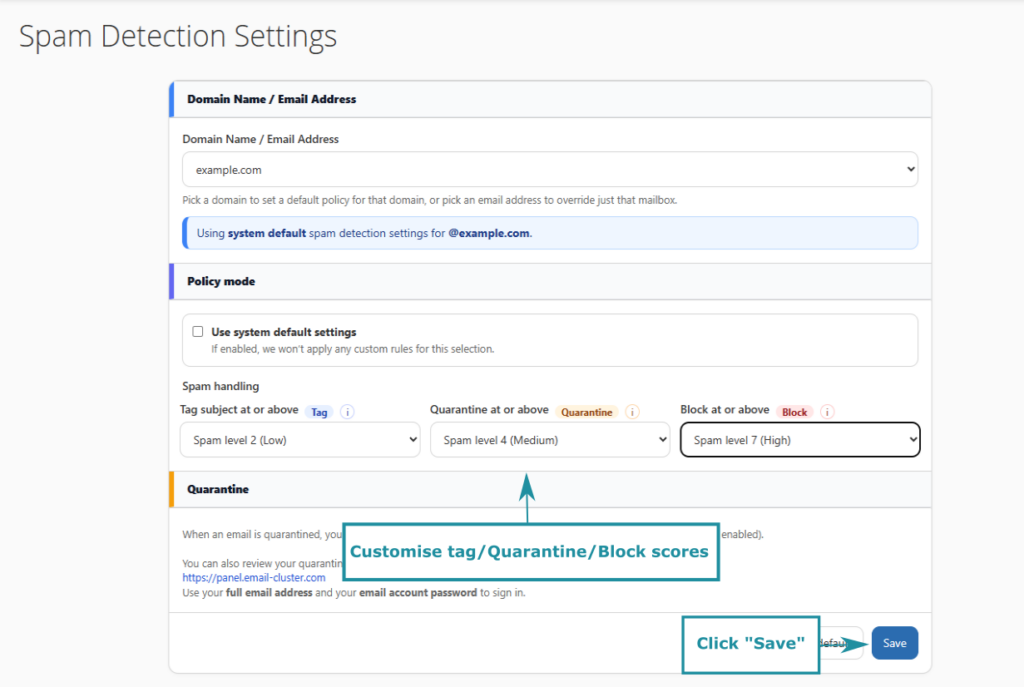
Select the spam detection score at which to tag, quarantine and block email.
Tag – when triggered, this modifies the subject of the email to prefix it with the text “SUSPECTED SPAM: “.
Quarantine – when triggered, this stops the email being delivered to the inbox and instead puts it into a quarantine. The quarantine can be accessed using a link sent via email or by logging into the panel (https://panel.email-cluster.com ) with your email account login details. Once logged in, quarantined email can be viewed, deleted or delivered. In addition, custom allowlists/blocklists can be managed within this panel.
Blocked – when triggered, the email is deleted without getting added to the inbox or quarantine. Please use caution when setting this as blocked email cannot be recovered.
Step 4
To save your settings, click “Save”
For any assistance with any part of this process, please contact us and we will be happy to help.